

Ever wondered how to effortlessly sync your Google Home with your iPhone? Picture this: you walk into your home, tired after a long day, and simply ask your Google Home to play your favorite playlist or turn down the lights. Sounds convenient, right? In this article, we’ll guide you through the seamless process of setting up your Google Home with your iPhone, making your daily routines a breeze.
Have you ever found yourself struggling to connect different devices, wishing for a simpler solution? By following our step-by-step instructions, you’ll unlock a world of possibilities with your Google Home and iPhone working in perfect harmony. Say goodbye to the hassle of navigating through complex setups – we’ve got you covered. Stay tuned to discover how you can enhance your smart home experience with just a few taps on your iPhone.
Key Takeaways
- Check compatibility between your iPhone and Google Home devices to ensure a smooth setup process.
- Download the Google Home app from the App Store to begin the setup.
- Follow the step-by-step process to connect your Google Home device to your iPhone via the app.
- Link your Google Account to personalize your experience and access additional features.
- Test the setup by checking connectivity, trying voice commands, testing media playback, verifying smart home device integration, and ensuring personalization features work correctly.
Setting Up Google Home with iPhone: A Comprehensive Guide
Make setting up your Google Home with your iPhone a breeze with the following simple steps:
Step 1: Download the Google Home App
Head to the App Store on your iPhone, search for the “Google Home” app, and download it.
Step 2: Open the App and Sign In
Launch the Google Home app on your iPhone and sign in with your Google account. If you don’t have one, you can create it within the app.
Step 3: Set Up Your Google Home Device
Plug in your Google Home device and ensure it’s turned on. In the app, tap on the “+” icon to add a new device and follow the on-screen instructions.
Step 4: Connect Google Home to Wi-Fi
Select your Google Home device from the list and connect it to your Wi-Fi network by entering the network name and password.
Step 5: Link Google Home to Your Google Account
Once connected to Wi-Fi, link your Google Home device to your Google account. This allows you to personalize your experience and access your calendar, reminders, and more.
Step 6: Get started with Voice Commands
Now that your Google Home is set up with your iPhone, start by using voice commands to play music, control smart devices, get weather updates, and much more.
Troubleshooting Tips:
If you encounter any issues during the setup process, make sure both your iPhone and Google Home are on the same Wi-Fi network. Restarting both devices can also help resolve connectivity issues.
Enjoy the seamless integration of your Google Home with your iPhone, bringing convenience and smart functionality to your daily routine.
1. Check Compatibility
To ensure a smooth setup process for your Google Home with your iPhone, it’s essential to first check the compatibility of your devices. Here’s how you can do it:
- Operating System Compatibility:
- Confirm that your iPhone runs on iOS 11.0 or higher. You can check this by going to Settings > General > About on your iPhone. Look for the “Software Version” to verify the iOS version.
- Google Home App Compatibility:
- Make sure your Google Home app is compatible with your iPhone. Go to the App Store and search for the Google Home app. Check if your device is listed as compatible with the app.
Verifying the compatibility of your iPhone and Google Home devices is crucial to ensure they work seamlessly together. Once you’ve confirmed compatibility, you can proceed with the setup process without any hitches.
2. Download Google Home App
To begin setting up your Google Home with your iPhone, you need to download the Google Home app. Here’s how to do it:
- Open App Store: Launch the App Store on your iPhone.
- Search for Google Home: In the App Store, use the search bar to type in “Google Home.”
- Locate Google Home App: Once you see the Google Home app icon, select it to open the app’s page.
- Download the App: Tap on the “Download” or “Get” button to start downloading the Google Home app to your iPhone.
- Wait for Installation: Depending on your internet speed, the app will download and install on your iPhone.
- Open the App: After installation is complete, tap on the Google Home app icon on your iPhone to launch it.
By following these steps, you’ll have the Google Home app ready on your iPhone, setting the stage for the next steps in the setup process.
Recommended Products
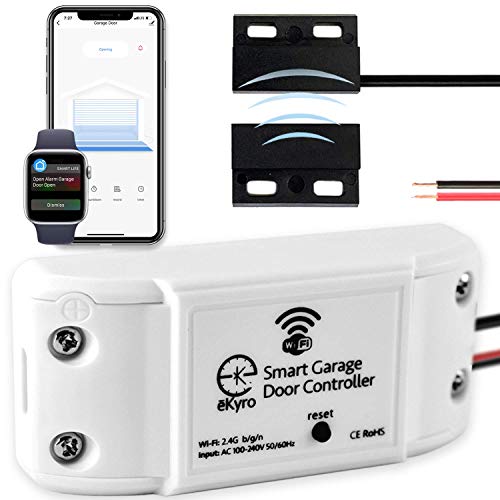
🧠 SMARTEN YOUR GARAGE: Universal adapter connects to existing openers & connects to WiFi to allow monitoring and control from your mobile device or voice assistant.

🧠SMARTEN YOUR LIFE - This wifi garage door opener further simplies your existing commercial door systems by the control of garage doors anywhere anytime via mobile devices or voice assistant.You can monitor and control your gate without being on site. It can give the door left open alert and automatically perform with alarm system
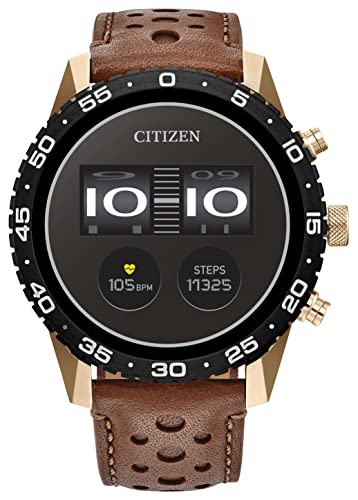
Smarter smartwatch: CZ Smart YouQ a proprietary wellness app built using research by NASA Ames Center and AI Models with IBM Watson Studio. YouQ helps wearers maximize their daily potential by learning the wearer’s unique Chronotype and daily rhythms. YouQ computes HR, SP02, fitness activity, sleep, alert scores to offer the consumer 24-hour forecast of alertness. Aggregating data will enable CZ Smart YouQ to cater to wearers personally allowing them to understand their body's rhythms.
3. Connect Google Home Device
Now that you’ve successfully downloaded the Google Home app on your iPhone, it’s time to connect your Google Home device. Follow these simple steps to complete the setup process:
- Plug In Your Google Home Device: Start by plugging in your Google Home device and wait for it to power up. Ensure it’s within range of your Wi-Fi network.
- Open the Google Home App: Launch the Google Home app on your iPhone. It’s the hub that will help you set up and control your Google Home device.
- Select Your Device from the App: In the Google Home app, tap on the “+” sign to add a new device. Follow the prompts to identify your Google Home device.
- Connect to Wi-Fi: The app will guide you through connecting your Google Home device to your Wi-Fi network. Make sure to select the correct network and enter the password when prompted.
- Allow Permissions: Grant the necessary permissions for the Google Home app to communicate with your device effectively.
- Follow the Setup Instructions: Proceed with the setup instructions on the app. This may include customizing settings, choosing a location for your Google Home device, and setting up voice match.
- Link your Google Account: Sign in to your Google Account within the app. This step is crucial for accessing personalized services and preferences.
- Try It Out: Once everything is set up, start experimenting with your Google Home device. Use voice commands to play music, ask questions, control smart home devices, and more.
Recommended Products

COMPLETE MESH WIFI: Get everything you need in one box- 3 Google WiFi AC1200 routers for a clean, elevated setup that boosts signal performance and keeps your home organized.

【Matter: All-Round Compatibility】With Matter, users are no longer tied to specific platforms and works with all certified smart home platforms, such as Apple Home, Amazon Alexa, Google Home and Samsung SmartThings. You can control all your smart home devices from a single app, reducing the need for multiple apps for different devices.

Warm Tips: To use Alexa and Google Home for voice control, please connect the plug with the “Smart Life” app first. Then go to Me > Third-Party Services to link with Alexa/Google. Note: Direct connection to Alexa is not supported.
4. Set Up Google Home
Now that you’ve installed the Google Home app on your iPhone and ensured both devices are on the same Wi-Fi network, it’s time to set up your Google Home device. Follow these steps to complete the process seamlessly:
- Plug In Your Google Home
- Find a suitable location for your Google Home device near a power outlet.
- Plug in the device and wait for it to power up. You’ll see lights indicating that it’s ready for setup.
- Open the Google Home App
- Launch the Google Home app on your iPhone.
- Ensure your phone is connected to the same Wi-Fi network as your Google Home device.
- Connect Your Google Home
- In the app, tap on “Set up device” or the “+” icon.
- Follow the on-screen instructions to find and connect to your Google Home device.
- Connect to Wi-Fi
- Select your Google Home device from the list that appears on the app.
- Enter the Wi-Fi network details when prompted to connect your Google Home to the internet.
- Grant Permissions
- You may need to grant permissions for the Google Home app to access certain settings on your iPhone.
- Follow the prompts on your phone to enable the necessary permissions.
- Follow Setup Instructions
- The app will guide you through the setup process, including language selection and device preferences.
- Make selections based on your preferences to personalize your Google Home experience.
- Link Your Google Account
- Sign in with your Google Account to ensure personalized features like calendar events and reminders are accessible.
- This step allows Google Home to tailor responses based on your account information.
- Experiment with Voice Commands
- Once set up is complete, start experimenting with voice commands.
- Try tasks like playing music, setting reminders, or controlling smart home devices to explore the capabilities of Google Home.
By following these steps, you’ll have your Google Home device set up and ready to assist you in enhancing your daily routines seamlessly. Enjoy the convenience and functionalities that Google Home brings to your smart home ecosystem.
Recommended Products

Google Audio Bluetooth Speaker Wireless Music Streaming - Chalk

TRAVEL ANYWHERE IT WORKS GLOBALLY - It plugs into the wall and is powered by an adapter that works globally so it works in outlets everywhere. It works globally with support for most languages and places internationally. And its language settings can always be changed back and forth to your preferred language anytime for international use or travel at your convenience

Enhanced Audio Quality: Delve into expansive, deeper sound with added bass, perfect for enjoying hits on Spotify, YouTube Music, and beyond.
5. Link Google Account
It’s time to link your Google Account to your Google Home device. This step is essential to personalize your experience and access your calendars, reminders, and more. Follow these simple instructions to complete the process smoothly:
- Open the Google Home App on your iPhone.
- Tap on the Account icon in the bottom right corner of the screen.
- Select “Settings” from the list of options.
- Choose “Assistant” and then “Voice Match.”
- Click on “Add devices” and select your Google Home device.
- Follow the on-screen instructions to link your Google Account to the device.
- You might need to enter your Google Account credentials for verification.
By linking your Google Account, you enable personalized features like receiving tailored responses to your queries, accessing your personal information, and utilizing your Google services seamlessly through your Google Home device. Enjoy the convenience of having your personalized assistant ready to assist you in your daily tasks.
6. Test Google Home with iPhone
Let’s ensure your Google Home setup with your iPhone is seamless by performing some quick tests to confirm everything works perfectly.
- Check Connectivity:
- Confirm that both your Google Home device and iPhone are connected to the same Wi-Fi network. This step is crucial for smooth communication between the two devices.
- Voice Command Test:
- Try out a few voice commands to test the functionality. For example, say, “Hey Google, what’s the weather today?” or “Hey Google, set a timer for 5 minutes.” This helps you verify if Google Home responds accurately to your commands.
- Media Playback Test:
- Play some music or a podcast using Google Home. You can say, “Hey Google, play some jazz music” or “Hey Google, play the latest episode of [Podcast Name].” Check if the audio plays correctly and adjust the volume as needed.
- Smart Home Device Integration Test:
- If you have smart home devices connected to Google Home, test their functionality. Try commands like “Hey Google, turn off the living room lights” or “Hey Google, set the thermostat to 72 degrees.” Ensure that Google Home controls these devices effectively.
- Personalization Test:
- Test the personalization features by asking Google Home about your day. Say, “Hey Google, tell me about my day” to get updates on your calendar events, reminders, and commute information. This helps you assess if your Google Account is linked correctly.
- Multiple Google Home Devices Test:
- If you have more than one Google Home device in your setup, check if they are synchronized. You can broadcast a message from one device to another by saying, “Hey Google, broadcast ‘Dinner is ready!'” This test ensures that all your Google Home devices work cohesively.
By performing these tests, you can validate the successful integration of your Google Home with your iPhone, making sure you’re all set to enjoy the convenience of a smart home environment.
Conclusion
You’re now equipped with the knowledge to seamlessly connect your Google Home with your iPhone. By following the steps outlined in this guide, you can enhance your daily routines and streamline your smart home experience. Remember the importance of compatibility, Wi-Fi connection, and granting necessary permissions. Linking your Google Account will unlock a personalized experience tailored to your needs. Test the setup by checking connectivity, experimenting with voice commands, and exploring media playback and smart home integrations. With your Google Home set up and optimized, you’re ready to enjoy the convenience and efficiency it brings to your daily life.
Frequently Asked Questions
1. How do I sync Google Home with my iPhone?
To sync Google Home with your iPhone, first, download and set up the Google Home app on your iPhone. Connect both devices to the same Wi-Fi network. Plug in and set up your Google Home device following the app’s instructions. Grant necessary permissions for the app to function properly.
2. Why is Wi-Fi network compatibility essential for syncing Google Home with an iPhone?
Having both devices on the same Wi-Fi network enables seamless communication between your Google Home and iPhone, ensuring a smooth user experience.
3. What steps are involved in setting up Google Home with an iPhone?
Setting up Google Home with your iPhone involves plugging in the device, connecting to Wi-Fi, granting permissions, linking a Google Account for personalization, and experimenting with voice commands to control tasks.
4. How can linking a Google Account enhance the Google Home experience on an iPhone?
Linking a Google Account allows you to personalize your experience, access calendars, reminders, and other personalized features seamlessly with your Google Home and iPhone.
5. What can users test after setting up Google Home with their iPhones?
After setup, users can test connectivity, voice commands, media playback, smart home device integration, personalization features, and the functionality of multiple Google Home devices with their iPhone.
