

Do you ever wish you could control your home security system with just your voice? Picture this: you’re relaxing on the couch, and with a simple command, you arm your ADT system using Google Home. Sounds convenient, right? In this article, you’ll discover how to seamlessly connect your ADT control panel to Google Home, making home security easier and more integrated into your daily routine.
By learning how to link your ADT control to Google Home, you can enjoy the convenience of managing your security settings hands-free. Imagine being able to check your system status, arm or disarm your alarm, or even adjust your smart home devices effortlessly using voice commands. This article will guide you through the simple steps to set up this connection, empowering you to enhance your home security experience with the power of voice control.
Key Takeaways
- Check compatibility between your ADT control panel and Google Home before attempting the connection.
- Install the Google Home app to serve as the bridge between your ADT system and Google Home for seamless integration.
- Link your ADT account securely through the Google Home app to enable voice commands for managing your home security system.
- Customize voice commands and explore settings within the Google Home app to tailor the experience to your preferences.
- Troubleshoot any issues by referring to the troubleshooting guides provided by ADT or Google Home support for seamless integration.
Overview of Connecting ADT Control to Google Home
Connecting your ADT Control panel to Google Home allows you to conveniently manage your home security system using voice commands. By integrating these two systems, you can effortlessly check the status of your security setup, arm or disarm the alarm, and control smart home devices hands-free. This guide will walk you through the process of setting up this connection to enhance your home security experience with voice-controlled ease. Let’s get started:
- Check Compatibility:
Ensure that your ADT Control panel is compatible with Google Home for seamless integration. Most ADT systems can be connected to Google Home, but it’s essential to verify compatibility to avoid any connectivity issues. - Install Google Home App:
If you don’t already have the Google Home app on your mobile device, download and install it from the App Store (iOS) or Google Play Store (Android). This app will serve as the bridge between your ADT Control panel and Google Home. - Link ADT Account:
Open the Google Home app and navigate to the “Settings” section. Look for the option to add a new device or service and select ADT. Follow the on-screen instructions to link your ADT account to Google Home securely. - Voice Commands:
Once the setup is complete, you can start using voice commands to interact with your ADT home security system through Google Home. For example, you can say, “Hey Google, arm my ADT security system” or “Hey Google, check the status of my front door camera.” - Customize Settings:
Explore the customization options available through the Google Home app to tailor your voice commands and preferences according to your needs. You can set up routines, manage alerts, and configure specific actions based on your security requirements. - Troubleshooting:
If you encounter any issues during the setup process or while using the voice commands, refer to the troubleshooting section in the Google Home app or contact ADT customer support for assistance.
By following these steps, you can seamlessly connect your ADT Control panel to Google Home and enjoy the convenience of managing your home security system using simple voice prompts. Enhance your home security experience with hands-free control and easy accessibility.
Step-by-Step Guide to Link ADT Control with Google Home
To integrate your ADT home security system with Google Home for voice-controlled management, follow these steps:
Recommended Products
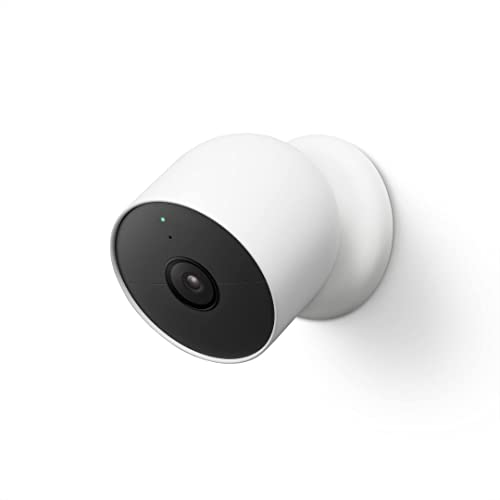
Nest Cam has built-in intelligence and can tell the difference between a person, animal, and vehicle and send alerts directly through the Google Home app[1], no subscription required.Controller Type:Google Assistant.Connectivity protocol:Bluetooth;Wi-Fi.Power source type:Battery Powered.Operating Temperature : –4°F to 104°F (–20°C to 40°C).

Meet the wired Nest Doorbell; with 2K HDR video and Gemini, it knows what’s at your door and and what to do next (Gemini features require a Google Home premium subscription; try it for 1 month at no cost to you)[4]

【WiFi&GSM/4G+NO MONTHLY FEES】:Just connect the alarm host to power source (backup battery included.) Then connect the host to WiFi through ''Smart Life'' app. Support GSM sim card,you can use GSM/3G/4G network(The SIM card is not included). Only work on 2.4GHz WiFi. Not support 5G ;There are absolutely no monthly fees or contracts required.
Check Compatibility:
Ensure that your ADT control panel is compatible with Google Home for seamless integration. Confirm compatibility by checking the device specifications or contacting ADT customer support.
Install Google Home App:
- Download the Google Home app: Go to the App Store or Google Play Store on your smartphone.
- Install the app: Follow the on-screen instructions to complete the installation process.
- Open the app: Launch the Google Home app on your smartphone.
Link Your ADT Account Securely:
- Access settings: In the Google Home app, navigate to “Settings.”
- Select “Works with Google”: Locate and choose “Works with Google” to link external accounts.
- Find ADT: Search for ADT in the list of compatible services.
- Log in to your ADT account: Enter your ADT credentials to securely link your account.
Use Voice Commands Effectively:
Now that your accounts are linked, you can start using voice commands with Google Home to manage your ADT security system.
Customize Settings:
- Personalize commands: Customize voice commands to suit your preferences.
- Set up routines: Create routines in the Google Home app to automate security actions.
Troubleshoot Issues:
Encountering any problems during the setup? Refer to the troubleshooting guide provided by ADT or Google Home support for assistance.
By following these steps, you’ll successfully link your ADT control panel with Google Home, enhancing your home security experience with hands-free control and convenient accessibility.
Troubleshooting Common Issues When Connecting ADT Control to Google Home
When integrating your ADT home security system with Google Home, you might encounter some common issues. Here are helpful troubleshooting tips to resolve these issues seamlessly:
Recommended Products

Simple to set up. Seriously secure. Get ready to protect right out of the box. Just plug in the Base Station and camera, place your sensors, and start protecting your home. No wiring or drilling required. The SimpliSafe App will walk you through the details or contact SimpliSafe directly for professional installation.
Connection Problems:
If you experience connection problems between your ADT control panel and Google Home, ensure that both devices are connected to the same Wi-Fi network. It’s essential to have a stable internet connection for successful integration.
Voice Command Issues:
In case your voice commands are not working effectively, try rephrasing your instructions. Speak clearly and ensure that Google Home can understand your requests accurately. Complex or unclear commands may lead to misinterpretations.
Account Linking Errors:
If you face errors when linking your ADT account to Google Home, double-check the login credentials for your ADT account. Verify that you have granted the necessary permissions for the integration to work smoothly.
Device Unresponsiveness:
Should your ADT control or Google Home devices become unresponsive during the setup process, restart both devices. Power cycling can often resolve temporary glitches and restore their functionality.
Compatibility Concerns:
In the event of compatibility issues, make sure that your ADT control panel and Google Home are compatible with each other. Check for any software updates required for both systems to ensure seamless integration.
App Settings Troubleshooting:
If you encounter issues while customizing settings within the Google Home app for ADT control, review the app settings carefully. Check for any conflicting configurations that may hinder the proper functioning of the integration.
Technical Support Assistance:
If you’ve tried troubleshooting common issues without success, consider reaching out to technical support for both ADT and Google Home. They can provide further guidance and resolve any advanced issues you may encounter during the connection process.
By following these troubleshooting tips, you can efficiently address common issues when connecting your ADT control to Google Home, ensuring a smooth integration experience for convenient voice-controlled management of your home security system.
Tips to Enhance the Integration Between ADT Control and Google Home
When integrating ADT Control with Google Home, you can enhance the functionality and convenience by following these tips:
Recommended Products

FAST, STABLE CONNECTION: Simply plug in and keep the smart outlet connected to your stable 2.4GHz network. Enhanced WiFi + Bluetooth connection is faster and more stable. Note: Don't support 5G WiFi.

Stability Upgrade Quick Connection:Supports Bluetooth or WiFi connection.The improved WiFi technology let you quick connection and stay stable,no disconnection worries. Please keep the smart plug connected to your stable 2.4GHz network.(Note: Only 2.4Ghz WiFi)
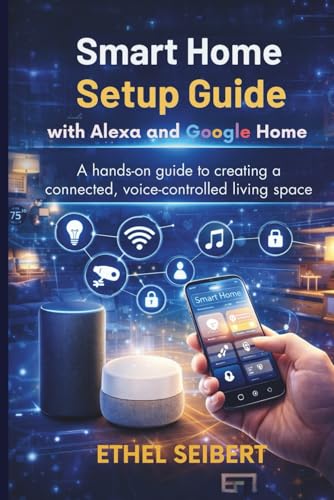
1. Optimize Placement for Voice Commands
Position your Google Home device within range of your ADT Control panel to ensure smooth communication. Place them in central areas of your home for better coverage and accurate voice command recognition.
2. Use Clear and Specific Voice Commands
When giving voice commands to Google Home for controlling your ADT system, be clear and specific. Avoid generic commands and use precise instructions to ensure accurate execution. For example, say “Hey Google, arm my ADT security system in Away mode” instead of a vague command like “secure my home.”
3. Group Devices for Seamless Control
Organize your smart home devices into groups within the Google Home app. Creating groups such as “Living Room Lights” or “Bedroom Thermostat” allows you to control multiple devices simultaneously with a single voice command, enhancing efficiency.
4. Regularly Update Software and Firmware
To maintain optimal performance and compatibility between ADT Control and Google Home, ensure that both systems are running the latest software updates and firmware versions. Regular updates can prevent compatibility issues and enhance system stability.
5. Customize Routines for Automation
Utilize Google Home routines to automate tasks and streamline your daily routine. Set up routines to arm your ADT system, adjust smart home devices, and perform other functions simultaneously with a single voice command or at specific times, enhancing convenience.
6. Check Compatibility Before Adding New Devices
Before integrating new smart home devices with your ADT Control and Google Home systems, verify their compatibility to avoid connectivity issues. Refer to the compatibility lists provided by ADT and Google Home to ensure seamless integration.
7. Explore Advanced Features and Integrations
Discover advanced features and integrations available between ADT Control and Google Home to maximize the functionality of your smart home ecosystem. Experiment with different commands, settings, and integrations to tailor the system to your specific needs.
By implementing these tips, you can enhance the integration between ADT Control and Google Home, optimizing the convenience and efficiency of your voice-controlled home security system.
Conclusion
That’s it! By optimizing device placement, using clear voice commands, and exploring advanced features, you can seamlessly integrate your ADT Control with Google Home. Enhance your home security system’s functionality and convenience with these simple yet effective tips. Remember to update software regularly, customize routines, and check compatibility before adding new devices. With these strategies in place, managing your home security system with just your voice has never been easier. Enjoy the convenience and peace of mind that come with a well-connected ADT Control and Google Home setup.
Frequently Asked Questions
Can I integrate ADT home security systems with Google Home for voice-controlled management?
Yes, you can integrate ADT home security systems with Google Home for voice-controlled management, offering convenience and easy access to security features.
What are some steps for compatibility, installation, and troubleshooting when integrating ADT home security systems with Google Home?
Steps include checking compatibility, ensuring proper installation of devices, and troubleshooting any connectivity issues promptly for seamless integration.
How can I enhance integration between ADT Control and Google Home for optimal functionality?
Optimize device placement, use clear voice commands, group devices, regularly update software, customize routines, and explore advanced features to enhance integration.
