

Key Takeaways
- Connecting Wired Speakers: Identify ports, choose the cable type, connect the cable, and configure settings to connect wired speakers to your LG Smart TV.
- Connecting Wireless Speakers: For wireless speakers, ensure compatibility, enable Bluetooth/Wi-Fi, pair devices, and adjust settings to connect them to your TV.
- Audio Output Selection: In TV settings, choose the primary audio output and adjust volume controls for external speakers connected to your LG Smart TV.
- Connecting Speakers via HDMI Cable: Check HDMI ports, identify the audio output, choose a high-quality HDMI cable, connect it, adjust audio settings, and test the connection for enhanced audio experience.
- Connecting Speakers via Bluetooth: Check compatibility, enable Bluetooth on the TV, follow the pairing process, adjust audio settings, and test the connection when connecting speakers via Bluetooth for wireless convenience.
- Using External Audio Devices: Identify audio output ports, choose the right cable, connect it, configure TV settings, adjust audio settings, and test the connection for an improved audio experience with external speakers on your LG Smart TV.
Overview of Speaker Connection to LG Smart TV
Connecting external speakers to your LG Smart TV can enhance your audio experience significantly. Here’s a straightforward guide to help you seamlessly link your speakers to your TV.
Connecting Wired Speakers
To connect wired speakers to your LG Smart TV, follow these simple steps:
- Check Ports: Identify the audio output ports on your TV. Most LG Smart TVs have HDMI ARC, Optical, or AUX ports for audio output.
- Choose Connection Type: Depending on your TV and speaker compatibility, select the appropriate cable type such as HDMI, Optical, or AUX cables.
- Connect the Cable: Plug one end of the cable into the audio output port on your TV and the other end into the input port on your speaker system.
- Configure Settings: Access your TV settings and select the connected audio output to ensure the sound is transmitted to the external speakers.
Connecting Wireless Speakers
If you prefer wireless speakers, here’s how to connect them to your LG Smart TV:
- Check Compatibility: Ensure that your LG Smart TV supports Bluetooth or Wi-Fi connectivity for wireless speaker pairing.
- Enable Bluetooth/Wi-Fi: Turn on the Bluetooth or Wi-Fi feature on your TV and your wireless speakers.
- Pair Devices: Follow the instructions to pair your speakers with the TV. This usually involves searching for available devices and selecting the speaker to pair with.
- Adjust Settings: Once paired, adjust the audio settings on your TV to route the sound to the wireless speakers.
- Audio Output Selection: In your TV settings, you might find an option to choose the primary audio output. Make sure to select the connected speakers.
- Volume Control: Some external speakers come with their volume controls. Ensure they are properly set and adjust the TV volume accordingly.
By following these steps, you can easily connect external speakers to your LG Smart TV and enjoy an immersive audio experience for your favorite movies, shows, and music.
Connecting Speakers via HDMI Cable
To connect your speakers to your LG Smart TV via an HDMI cable, follow these simple steps:
Recommended Products

Fit for Samsung Smart TV, TCL Roku TV, Sony Playstation 5 PS5, PS4, Xbox One, LG Smart TV, Fire TV,Laptop, Monitor HDTV/Blu-ray & More

1080P HD Display MHL Adapter Cable -- Not only support the function of the phone, tablet to the screen(smart tv, projector), but also support the function of the Charging line. The MHL cable supports screen mirroring from YouTube, FaceTime, Skype, WhatsApp, Office; Compared with other adapters, this cable features with hdmi and usb charging cable itself, saving your much time and money to buy additional hdmi cable.Continuous charging your devices when Mirroring
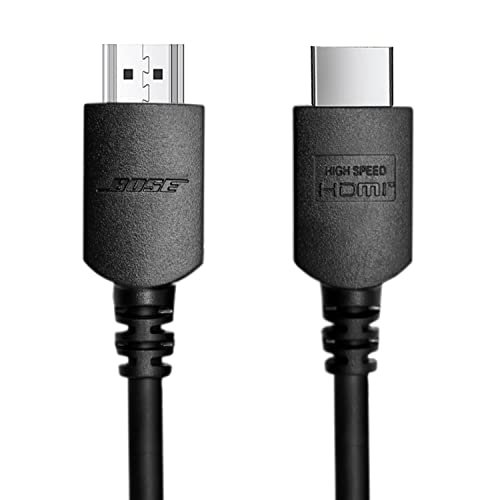
Bose 4K HDMI Cable: HDMI A Male to A Male Cable supports 4K video @ 60Hz, 2K, 1080P, 48 bit/px HDR color depth, 32 channel audio, HDCP, TrueHD 7.1, Audio Return Channel (ARC) & HDMI Ethernet Channel (HEC) and more.
1. Check HDMI Ports
Inspect your LG Smart TV for available HDMI ports. Most modern TVs come with multiple HDMI ports for connecting various external devices.
2. Identify Audio Output
Ensure you locate the audio output port on your TV. This is where you’ll connect your HDMI cable to transmit both audio and video signals.
3. Choose High-Quality HDMI Cable
Select a high-quality HDMI cable that is long enough to reach from your TV to the speakers without any tension on the cable.
4. Connect HDMI Cable
Plug one end of the HDMI cable into the HDMI port on your LG Smart TV and the other end into the HDMI input on your external speakers.
5. Adjust Audio Settings
Access the audio settings on your LG Smart TV through the menu. Navigate to the sound settings and ensure the audio output is set to the connected HDMI port.
6. Test the Connection
Play some audio or video on your TV to check if the sound is now coming through your external speakers connected via the HDMI cable.
By following these steps, you can easily connect your external speakers to your LG Smart TV using an HDMI cable for an enhanced audio experience.
Connecting Speakers via Bluetooth
To enhance your audio experience further, you can connect your speakers to your LG Smart TV using Bluetooth. This wireless option provides flexibility and convenience in streaming audio. Here’s how you can seamlessly set it up:
- Check Compatibility:
- Ensure that both your LG Smart TV and Bluetooth speakers support the Bluetooth feature. Most modern devices should have this capability.
- Enable Bluetooth on LG Smart TV:
- Navigate to your TV’s settings menu.
- Look for the Bluetooth or Connectivity option, then enable Bluetooth.
- Pairing Process:
- Put your Bluetooth speakers in pairing mode. This process varies among different speaker models, so refer to the speaker’s manual.
- On your LG Smart TV, search for nearby Bluetooth devices.
- Once your speakers appear on the list, select them to establish the connection.
- Adjust Audio Settings:
- After successful pairing, adjust the audio output settings on your LG Smart TV.
- Ensure that the audio is directed to the connected Bluetooth speakers for an optimal listening experience.
- Testing the Connection:
- Play some audio or video content on your LG Smart TV to test the connection to your Bluetooth speakers.
- Confirm that the sound is coming from the speakers to validate the successful pairing.
By following these steps, you can effortlessly connect your Bluetooth speakers to your LG Smart TV and enjoy an enhanced audio experience without the hassle of cables. Whether it’s for movies, shows, or music, the wireless convenience of Bluetooth connectivity adds another dimension to your entertainment setup.
Recommended Products

State-of-the-Art Never Looked so Good - Meet the next gen StanbyME XT7 Bluetooth Speaker—offering a perfect blend of style and functionality. With an impressive 16 hours of playtime, IPX5 water resistance and clear, balanced sound, it ensures you'll get the ultimate listening experience, wherever you may go. Plus, enjoy ambient lighting for added atmosphere, seamless connectivity for your convenience and more. Pump up the party with the StanbyME XT7 speaker, only from LG.

Small in Size, Big on Bass - Upgrade your TV sound with an all-in-one soundbar featuring enhanced LG TV connectivity. Step up your TV sound with a passive radiator that delivers rich bass with everything you watch and listen to.

New Dimensional Sound - Come home to the cinematic sound you’ve always wanted, and experience every heart-thumping, thrill-inducing, moment. With 4 channels backed by a booming wireless subwoofer and wireless rear speakers, this LG Soundbar delivers a big audio punch without taking up too much of your space—or budget. Dolby Digital and DTS Digital compatibility means you still get enhanced sound quality for all your shows, movies, music and more.
Using External Audio Devices
When it comes to enhancing your audio experience with your LG Smart TV, using external audio devices can make a significant difference in sound quality. Connecting external speakers to your TV is a straightforward process that can elevate your viewing and listening enjoyment. Here’s how you can easily connect external audio devices to your LG Smart TV:
- Identify Audio Output Ports: Locate the audio output ports on your LG Smart TV. These ports are usually labeled as “Audio Out,” “Optical Out,” or “HDMI ARC.”
- Select the Right Cable: Depending on the type of audio output port on your TV and the input ports on your soundbar or home theater system, choose the appropriate cable. Common options include HDMI, optical, or RCA cables.
- Connect the Cable: Plug one end of the cable into the audio output port on your TV and the other end into the corresponding input port on your soundbar or home theater system.
- Configure TV Settings: On your LG Smart TV, access the settings menu and select the audio output option. Choose the connected external audio device (soundbar or home theater system) as the audio output source.
- Adjust Audio Settings: To ensure optimal sound performance, adjust the audio settings on both your TV and the external audio device. You can customize settings such as volume levels, equalizer settings, and audio modes.
- Test the Connection: Play a video or music on your LG Smart TV to test the audio output. Ensure that the sound is coming from the external speakers and adjust settings as needed for the best audio experience.
Recommended Products

Optical digital audio cable: Perfect for equipment with a TOSLINK interface (OPT In / OPT Out or S/PDIF In / S/PDIF Out). TOSLINK connector to TOSLINK connector (F05 connector)

【Note】BEFORE USING THE PRODUCT, ADJUST THE AUDIO OUTPUT FORMAT OF THE TV TO PCM (Device Home→System Settings→Picture and Sound→Sound Settings→Digital Audio Output→PCM), and Volume can only be adjusted on the output device, not via the TV remote control. In addition, the product does not support connection to headphones

Optical digital audio cable: Perfect for equipment with a TOSLINK interface (OPT In / OPT Out or S/PDIF In / S/PDIF Out). TOSLINK connector to TOSLINK connector (F05 connector)
Conclusion
You’ve now learned how to effortlessly connect external speakers to your LG Smart TV, elevating your audio experience. By following the steps outlined in this guide, you can enjoy enhanced sound quality for your favorite movies, shows, and music. Whether you opt for a wired or wireless setup, the key is to identify the audio output ports, select the right cables, and configure the settings correctly. With your external speakers seamlessly integrated with your LG Smart TV, you’re all set to immerse yourself in a whole new level of audio enjoyment. Cheers to crystal-clear sound and an enhanced viewing experience!
Frequently Asked Questions
How can I connect external speakers to my LG Smart TV?
To connect external speakers to your LG Smart TV, you can use either a wired or wireless method. For a wired connection, identify the audio output ports on your TV, select the right cable (usually an HDMI or Optical cable), and connect it to your external speakers. For a wireless connection, use Bluetooth or Wi-Fi-enabled speakers by pairing them with your TV in the settings menu.
Why is it important to configure audio settings when connecting external speakers?
Configuring audio settings when connecting external speakers is crucial to ensure optimal sound performance. Adjusting settings like volume, equalizer, and sound mode can enhance audio quality, prevent distortion, and create a personalized sound experience tailored to your preferences.
What are the benefits of using external audio devices with an LG Smart TV?
Using external audio devices like soundbars or home theater systems with your LG Smart TV can significantly improve your audio experience. These devices offer better sound quality, richer bass, and immersive surround sound, enhancing your overall enjoyment of movies, shows, and music playback.
