

Have you ever wished you could control your home devices with a simple tap on your phone? Imagine walking into a well-lit room, perfectly set to your preference, without even touching a switch. That’s where Apple HomeKit steps in to make your life easier.
Picture this: you’re heading home on a scorching summer day, longing for a cool oasis. With Apple HomeKit, you can adjust your thermostat from your car, ensuring a refreshing welcome as soon as you step through the door.
In this article, we’ll explore how Apple HomeKit seamlessly integrates your smart home devices, offering convenience and control at your fingertips. Get ready to dive into the world of effortless home automation.
Key Takeaways
- Apple HomeKit serves as a versatile smart home platform that allows for seamless integration and control of various compatible devices.
- Automation and Scenes in Apple HomeKit enable users to automate tasks and control multiple devices with a single command efficiently.
- Siri Integration with Apple HomeKit provides the convenience of using voice commands to manage smart devices effortlessly.
- Security and privacy are prioritized in Apple HomeKit, ensuring that data remains protected through end-to-end encryption.
- Easy setup and configuration make it accessible for users of all technical expertise levels to start using Apple HomeKit.
- Scalability and ecosystem integration allow for an expanding range of supported devices and easy integration into existing setups as smart home needs evolve.
Overview of Apple HomeKit
Apple HomeKit is a versatile smart home platform that enables you to control various compatible devices seamlessly. It serves as a centralized hub for managing your smart home ecosystem, allowing you to streamline daily tasks and enhance convenience. With Apple HomeKit, you can integrate and control a wide range of smart devices effortlessly.
Recommended Products
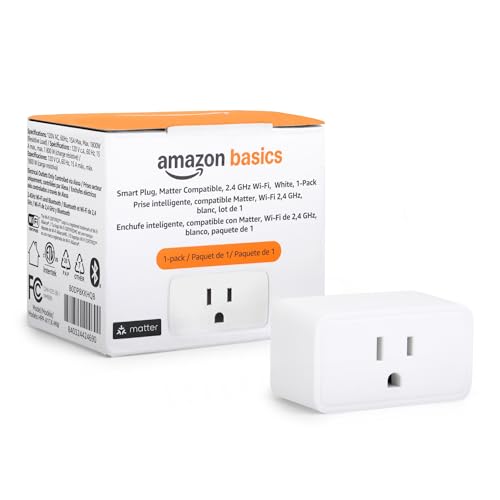
MULTI-SERVICE COMPATIBILITY: Matter-certified smart plugs are compatible with most major smart home services like Amazon Alexa, Google Home, Apple HomeKit, and Samsung SmartThings. Supports 2.4GHz Wi-Fi only. Matter-compatible smart hub required

【Note】Please ensure the bulb fits your lamp before buying to avoid trouble. It supports only 2.4Ghz WiFi, not 5.0Ghz. Smart bulbs usually don't work with dimmer switches, which may cause flickering, burning out, or buzzing. To dim the lights, use Hub/Apps

Effortless Setup: Start setup instantly by scanning the Matter QR code using your smartphone's camera or smart home application, simplifying the installation for immediate use. Matter Hub Required. Stocking Stuffer idea for the holidays.
Key Components of Apple HomeKit
- Home App: The Home app is your primary interface for managing all connected smart devices. It lets you group devices, create scenes, and automate actions based on triggers.
- Home Hub: A Home Hub, such as an iPad, Apple TV, or HomePod, acts as a bridge between your devices and allows remote access when you’re away from home.
Device Compatibility
Apple HomeKit is compatible with a variety of smart devices, including thermostats, lights, locks, cameras, and more. These devices can be seamlessly integrated into the Home app for centralized control.
Automation and Scenes
- Automation: Apple HomeKit allows you to automate tasks based on time, location, sensor detection, or device status. For example, you can set your lights to turn on automatically when you arrive home.
- Scenes: Scenes enable you to control multiple devices with a single command. For instance, you can create a “Good Night” scene that turns off the lights, locks the doors, and adjusts the thermostat in one go.
Siri Integration
One of the highlights of Apple HomeKit is its integration with Siri, Apple’s virtual assistant. You can use voice commands to control your smart devices, check their status, or execute custom actions effortlessly.
Secure and Private
Apple HomeKit prioritizes security and privacy, ensuring that your data remains protected. Communication between devices is end-to-end encrypted, safeguarding your personal information.
Easy Setup and Configuration
Setting up Apple HomeKit is straightforward, requiring you to add compatible devices to the Home app and configure them according to your preferences. The user-friendly interface simplifies the process, making it accessible to users of all levels of technical expertise.
Expandability and Ecosystem Integration
As your smart home needs evolve, Apple HomeKit offers a scalable solution that supports a growing ecosystem of devices. You can add new devices easily and integrate them into your existing setup without complications.
Setting Up Apple HomeKit
Setting up Apple HomeKit is a straightforward process that allows you to control your smart home devices seamlessly. Follow these steps to get started:
- Ensure Compatibility: Check if your smart home devices are compatible with Apple HomeKit. Look for the “Works with Apple HomeKit” label on the product packaging or check the manufacturer’s website for compatibility information.
- Update Your Devices: Make sure your iPhone, iPad, or iPod touch is running the latest version of iOS or iPadOS. This ensures compatibility and smooth functioning with Apple HomeKit.
- Open the Home App: Launch the Home app on your iOS device. If you don’t have it already, download it from the App Store.
- Set Up Your Home: Tap on “Add Home” to create your home within the app. Give your home a name, such as “My Home” or “Smart Home,” for easy identification.
- Add Rooms: Create rooms within your home to organize your smart devices. For example, you can have “Living Room,” “Kitchen,” and “Bedroom” as different rooms.
- Add Accessories: Tap on “Add Accessory” in the Home app to add your smart devices. Follow the on-screen instructions to pair each device with Apple HomeKit.
- Scan the HomeKit Code: Many smart home devices come with a HomeKit setup code. You can scan this code using your device’s camera to quickly add the accessory to HomeKit.
- Set Up Automation: Create automation in the Home app to control your devices based on triggers like time of day, location, or actions of other devices. For instance, you can set your lights to turn on automatically when you arrive home.
- Invite Users (Optional): If you want to share control of your smart home with family members or roommates, you can invite them to the Home app. This allows everyone to manage the devices collectively.
- Enjoy Your Smart Home: Once everything is set up, you can start enjoying the convenience of controlling your smart home devices through Apple HomeKit and Siri voice commands.
By following these steps, you can easily set up Apple HomeKit and begin managing your smart home devices efficiently.
Recommended Products

MOST CONNECTED SMART LIGHTING: Add your lights to Amazon Alexa, Apple Home, Google Home, Ring, Sonos, Samsung with the Caseta Smart Hub; Lutron Caseta Dimmer Switch connects with more smart home devices than any other smart lighting control brand

[Multi-Protocol Hub with Matter Bridge] The M3 is a versatile hub supporting Aqara Zigbee and Thread devices. It integrates third-party devices into the Aqara Home app. Supports advanced Matter bridge functionality, enabling Aqara-exclusive scenes and signals to sync with Matter ecosystems such as Home Assistant for seamless integration. Supports up to 127 Aqara Zigbee devices (** Not third-party Zigbee devices) and 127 Thread devices (Repeaters are needed).
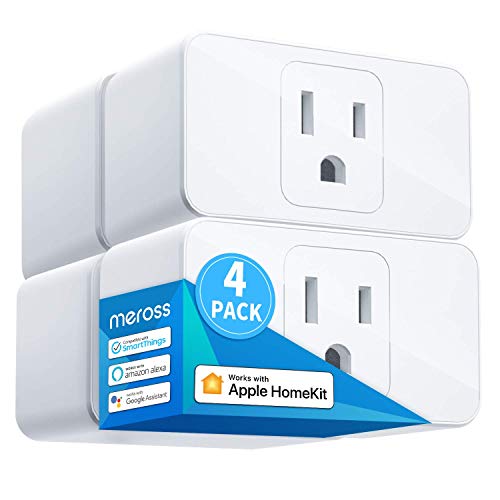
Remote Control: To enable HomeKit remote control, you need a HomePod, an Apple TV 4K, Apple TV HD, or an iPad. Set any of these Apple devices in your house as a HomeKit bridge and connect it to your home 2.4GHz Wi-Fi network. Keep in mind that once your HomeKit bridge is set up, it has to be kept online. If it is powered off or disconnected from the Wi-Fi, it will fail to respond when you intend to control the device remotely.
Using Apple HomeKit Features
Unlock the full potential of your smart home with the powerful features offered by Apple HomeKit. Here’s how you can make the most of this innovative platform:
Recommended Products
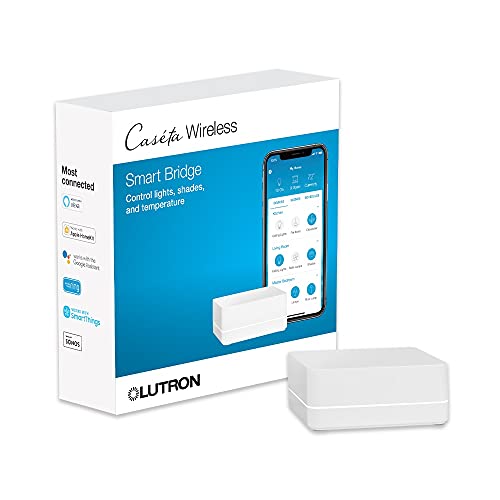
CONNECTS WITH MORE LEADING SMART HOME BRANDS THAN ANY OTHER SMART HOME BRAND: Including Amazon Alexa, Apple HomeKit, the Google Assistant, Ring, Serena shades, and Sonos to manage lights, voice assistants, cameras, temperature, shades, and music
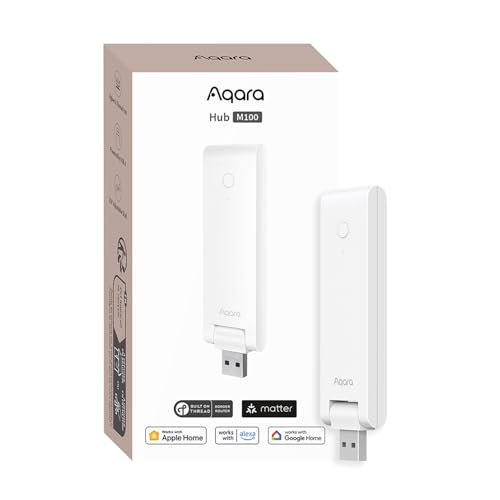
Multi-Protocol Smart Hub with Matter Bridge – The M100 is a versatile smart hub compatible with Thread devices and Aqara Zigbee (** Not third-party Zigbee devices), supporting up to 20 Aqara Zigbee devices and 20 Thread devices. As a Matter Bridge, it connects Aqara Zigbee products to other smart home ecosystems, compatible with Apple Home, Amazon Alexa, Home Assistant, etc. Note: Use a 5V⎓0.5A power adapter (not included) and keep the product continuously powered during use.

【Apple HomeKit Support】This Apple HomeKit compatible smart switch fully integrates into your Apple ecosystem, just ask Siri to turn on/off the lights in your home. (Apple HomeKit remote control requires an additional networked Apple device at home such as a HomePod or Apple TV.)
– Control Your Devices Remotely
Take charge of your smart devices from anywhere with Apple HomeKit. Whether you’re at home or on the go, you can easily control your lights, thermostats, locks, and more using your iPhone or iPad.
– Create Customized Scenes
Set the perfect ambiance for any occasion by creating custom scenes in the Home app. With a single tap or voice command, you can adjust multiple devices to create the ideal lighting, temperature, and mood in your home.
– Automate Your Home
Simplify your daily routine by automating tasks with Apple HomeKit. Schedule devices to turn on or off at specific times, or trigger actions based on your location or sensor detection. It’s like having a personal assistant for your smart home.
– Use Siri Voice Commands
Harness the power of Siri to control your smart home with just your voice. From adjusting the lights to setting the thermostat, simply ask Siri to perform tasks for you. It’s hands-free convenience at its best.
– Ensure Data Security
Rest easy knowing that your data is secure with Apple HomeKit’s robust security measures. With end-to-end encryption and strict privacy controls, you can trust that your smart home information is protected at all times.
– Enjoy Seamless Integration
Connect all your favorite smart devices seamlessly with Apple HomeKit. With over a hundred certified products available, you can easily expand your smart home ecosystem and enjoy effortless integration between different brands and devices.
– Stay Updated on Notifications
Receive timely notifications on your Apple devices about any activity in your smart home. Whether it’s a door left unlocked or a sensor triggered, stay informed and in control with real-time alerts from Apple HomeKit.
– Personalize Your Home Experience
Tailor your smart home experience to suit your lifestyle with Apple HomeKit’s customizable settings. Adjust preferences, create user profiles, and personalize device controls to meet your unique needs and preferences.
– Explore Third-Party Apps
Discover a world of possibilities with third-party apps that enhance your Apple HomeKit experience. From advanced automation to specialized controls, explore the App Store for additional features that take your smart home to the next level.
Advantages of Apple HomeKit
Apple HomeKit offers several advantages that enhance your smart home experience. Here are some key benefits of using Apple HomeKit:
1. Enhanced Security:
- With Apple HomeKit, your smart home devices’ security is a top priority. The platform uses end-to-end encryption to protect your data and privacy.
2. Seamless Integration:
- Apple HomeKit enables seamless integration of various smart devices from different manufacturers. This compatibility ensures that your devices work together harmoniously.
3. Siri Voice Control:
- Enjoy hands-free control of your smart home devices using Siri voice commands through Apple HomeKit. It allows you to conveniently manage multiple devices with simple voice prompts.
4. Remote Access:
- One of the significant advantages of Apple HomeKit is remote access. You can control your smart home devices from anywhere using your Apple devices, providing convenience and peace of mind.
5. Automation and Scenes:
- Create customized automation and scenes with Apple HomeKit to streamline daily tasks and enhance your home environment. Set schedules and triggers to automate processes and create specific settings for different scenarios.
6. Real-Time Notifications:
- Stay informed about what’s happening in your home with real-time notifications from Apple HomeKit. Receive alerts on your Apple devices for motion detection, door sensor activity, and more.
- Explore a wide range of third-party apps that integrate with Apple HomeKit to further enhance your smart home capabilities. These apps offer additional features and functionalities to personalize your smart home experience.
Utilizing Apple HomeKit’s advantages can transform your living space into a more efficient and convenient environment. Benefit from enhanced security, seamless integration, voice control, remote access, automation features, real-time notifications, and third-party app support for a smarter home setup.
Conclusion
You now have a solid understanding of how Apple HomeKit works. With its user-friendly features like automation, Siri integration, and robust security measures, HomeKit offers a seamless smart home experience. By following the setup process and exploring the full potential of HomeKit, you can enjoy remote device control, personalized scenes, real-time notifications, and more. Embrace the convenience and efficiency that Apple HomeKit brings to your smart home setup.
Frequently Asked Questions
What is Apple HomeKit?
Apple HomeKit is a smart home platform developed by Apple that allows users to control and automate various smart devices in their home using their iPhone, iPad, or other Apple devices.
What are the key components of Apple HomeKit?
The key components of Apple HomeKit include the Home app for device management, Home Hub for remote access, compatibility with smart devices, automation, scenes, and Siri integration.
How does Apple HomeKit enhance smart home control?
Apple HomeKit enhances smart home control by offering features like automation, personalized scenes, Siri voice commands, real-time notifications, and secure data encryption for a seamless and convenient user experience.
What are some advantages of using Apple HomeKit?
Advantages of Apple HomeKit include enhanced security through encryption, Siri voice control, seamless device integration, remote access, real-time notifications, automation and scenes creation, personalized settings, and the option to explore third-party apps for additional features.
