

Tired of juggling multiple apps to control your smart home devices? Ever wished you could simply ask Google to do it all for you? Picture this: You walk in with arms full of groceries, and with a voice command, your garage door smoothly opens without missing a beat. Sounds like a dream come true, right? Well, with MyQ and Google Home, this can be your reality.
In this article, I’ll guide you through the seamless process of setting up MyQ with Google Home, unlocking a world of convenience at your fingertips. Say goodbye to the hassle of manual controls and hello to a smarter, more connected home experience. Let’s dive in and make your daily routine a whole lot easier with this simple integration.
Key Takeaways
- MyQ and Google Home integration offers features like voice control, remote access, and automation to enhance your smart home experience.
- Benefits of integrating MyQ with Google Home include convenience, security, and accessibility for managing your smart devices.
- Setting up MyQ with Google Home involves checking compatibility, installing the MyQ Smart Garage Hub, connecting it to Google Home, and using voice commands.
- You can seamlessly link your MyQ account with Google Home by accessing account settings, selecting Google Home, signing in to your Google account, granting permission, and completing the setup.
- Installing the MyQ Smart Garage Hub enhances home automation, allowing easy control of your garage door through voice commands or the Google Home app.
- Troubleshooting common issues like connection drops, unresponsiveness, syncing delays, voice recognition problems, and compatibility issues can help resolve any challenges during the setup process.
Overview of MyQ and Google Home Integration
Integrating MyQ with Google Home allows you to effortlessly control your smart home devices, enhancing your overall home automation experience. With this integration, you can streamline your daily routines and enjoy the convenience of managing various smart devices with voice commands or through the Google Home app on your smartphone.
Features of MyQ and Google Home Integration
MyQ and Google Home integration offers several key features that elevate your smart home experience:
- Voice Control: With Google Assistant, you can open, close, and check the status of your garage door using simple voice commands.
- Remote Access: You can monitor and control your garage door and other MyQ-compatible devices from anywhere using the Google Home app on your phone.
- Automation: Set up routines and schedules to automate the operation of your garage door and other connected devices, making your daily tasks more efficient.
Benefits of Integration
By integrating MyQ with Google Home, you unlock a range of benefits, including:
- Convenience: Easily operate your garage door and other smart devices hands-free with voice commands.
- Security: Receive real-time notifications about the status of your garage door, ensuring your home’s security.
- Accessibility: Control your smart home devices remotely, allowing you to manage your home even when you’re away.
How to Set Up MyQ with Google Home
To set up MyQ with Google Home, follow these simple steps:
- Ensure Compatibility: Check if your garage door opener is compatible with MyQ and Google Home.
- Install MyQ Smart Garage Hub: Set up the MyQ Smart Garage Hub according to the manufacturer’s instructions.
- Connect MyQ to Google Home: Open the Google Home app, navigate to “Add,” select “Set up device,” choose “Have something already set up?” and follow the on-screen instructions to link MyQ.
- Voice Commands: Start using voice commands with Google Assistant to control your garage door and other MyQ devices.
Conclusion
Integrating MyQ with Google Home revolutionizes the way you interact with your smart home devices, offering convenience, security, and accessibility at your fingertips. Explore the seamless integration today and experience the benefits of a more connected and automated home environment.
Setting Up MyQ Account
To connect your MyQ account with Google Home seamlessly, follow these straightforward steps:
1. Navigate to MyQ App
Open the MyQ app on your mobile device. If you don’t have it already, download it from the App Store or Google Play Store.
2. Access Account Settings
Once in the MyQ app, locate the account settings. It’s typically represented by a gear icon or labeled as “Settings.”
3. Select Account Linking
Within the account settings, look for the option to link external accounts or services. This is where you’ll integrate MyQ with Google Home.
4. Choose Google Home
From the list of available devices and services, select Google Home to begin the integration process.
5. Sign in to Google Account
You’ll be prompted to sign in to your Google account to authorize the connection between MyQ and Google Home.
6. Grant Permission
Give permission for MyQ to link with your Google Home account. This step ensures seamless communication between the two platforms.
7. Complete the Setup
Follow the on-screen instructions to finalize the setup process. Once completed, you’ll receive a confirmation message that MyQ is now linked with your Google Home.
By following these simple steps, you can efficiently set up your MyQ account with Google Home, enhancing your home automation experience.
Installing MyQ Smart Garage Hub
To set up your MyQ Smart Garage Hub with Google Home seamlessly, follow these straightforward steps to enhance your home automation experience further:
- Preparing the MyQ Smart Garage Hub
- Ensure your MyQ Smart Garage Hub is installed and connected per the manufacturer’s instructions.
- Download the MyQ app on your smartphone or tablet and sign in to your account.
- Integration with Google Home
- Open the MyQ app and navigate to the Account Settings.
- Select “Smart Home Access” and then choose “Google Assistant.”
- Click on “Link” and sign in to your Google account.
- Granting Permission
- Grant permission to link your MyQ account with Google Home.
- Authorize the connection between MyQ and Google Home to enable voice control and remote access features.
- Completing the Setup
- Once permission is granted, complete the setup process by following the on-screen instructions.
- Confirm the successful integration between MyQ Smart Garage Hub and Google Home.
By following these steps, you can seamlessly link your MyQ Smart Garage Hub with Google Home, enabling easy control and access to your garage door through voice commands or the Google Home app. Enjoy the convenience and added security that come with this smart home integration.
Recommended Products
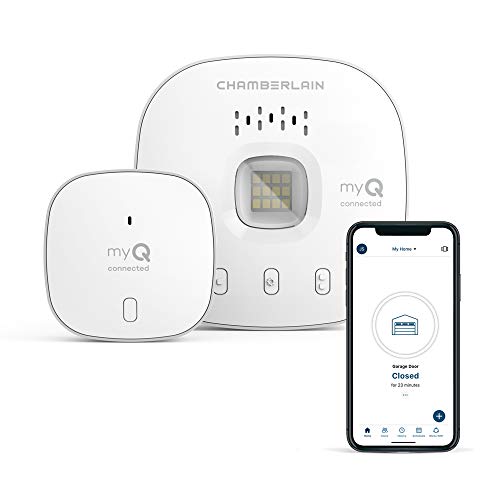
“Did I shut the garage” No more worrying.

Smartphone control: Control, secure and monitor your garage door from anywhere.
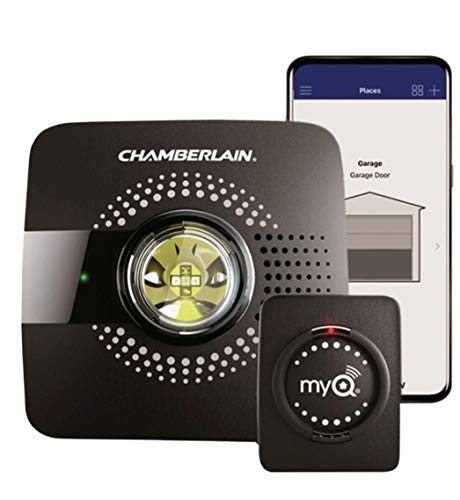
Smart garage control open and close your garage door from anywhere with your smartphone through the myQ App
Integrating MyQ with Google Home
To integrate MyQ with Google Home seamlessly, follow these simple steps to enhance your home automation experience. By connecting MyQ to Google Home, you can effortlessly control your smart home devices using voice commands and enjoy the convenience of remote access and automation.
Recommended Products

Compatibility: Compatible ONLY with LiftMaster Security+ 2.0 garage door openers (with myQ logo and yellow learn button) and lighting accessories enabled by MyQ technology

Wide-Angle Surveillance Camera: Capture a comprehensive view of your garage area, from driveway to doorway.

Compatibility Check: The smart garage door opener is compatible with 200 brands and over 1600 models. Compatible with openers using Security+ 1.0 and Security+ 2.0 protocols (does not support Security+ 3.0 ). Before purchasing, please check if your garage door model is on the compatibility list. If your garage door needs accessories to solve compatibility issues. please send meross support team the information about your garage opener, we can ship the proper accessory separately for you, and make it works
Connecting MyQ Account with Google Home
- Access Account Settings:
- Open the MyQ app on your smartphone.
- Go to the account settings section within the app.
- Select Google Home:
- Look for the Google Home option in the settings menu.
- Click on Google Home to initiate the integration process.
- Sign In to Your Google Account:
- You’ll be prompted to sign in to your Google account.
- Enter your Google account credentials to proceed.
- Grant Permission:
- Allow MyQ to connect with your Google Home account.
- Grant the necessary permissions for a seamless integration.
- Complete the Setup:
- Follow the on-screen instructions to finalize the integration.
- Confirm the connection between MyQ and Google Home.
Installing the MyQ Smart Garage Hub
In addition to integrating your MyQ account with Google Home, you can enhance your home automation further by installing the MyQ Smart Garage Hub. This device allows you to control and monitor your garage door remotely using Google Home.
- Attach the Hub:
- Mount the MyQ Smart Garage Hub near your garage door opener.
- Ensure proper alignment for optimal functionality.
- Connect to Power:
- Plug in the MyQ Smart Garage Hub to a power source.
- Wait for the device to power up and initialize.
- Pair with MyQ App:
- Use the MyQ app to pair the Smart Garage Hub with your MyQ account.
- Follow the app’s instructions to complete the pairing process.
- Integrate with Google Home:
- Once the Hub is successfully set up, link it with your Google Home account.
- Enjoy the convenience of voice-controlled access to your garage door.
By following these steps, you can easily integrate MyQ with Google Home, enabling seamless control of your smart home devices and providing added convenience and security to your daily life.
Troubleshooting Common Issues
If you encounter any problems while setting up MyQ with Google Home, there are a few common issues you might face and ways to address them. Here are some troubleshooting tips to help you resolve any challenges:
Recommended Products

Bundle includes myQ Smart garage camera, smart garage control and a door sensor

Brand New in box; The product ships with all relevant accessories

Helps you mount your MyQ Smart Garage Hub near your garage door opener, securely attaching the hub to the hanging kit.Only compatible with MYQ-G0401-ES. No Drilling, No Tools, Install Damage-Free
Connection Drops:
If your MyQ device frequently disconnects from Google Home, check your internet connection first. Weak Wi-Fi signals can cause drops in connectivity. Ensure that both your MyQ and Google Home devices have a stable connection to your network. Moving them closer to your router can improve signal strength and reduce disconnects.
Device Unresponsive:
If your MyQ Smart Garage Hub is unresponsive to voice commands or app controls, try restarting both the MyQ device and your Google Home speaker. Power cycle the devices by unplugging them for a few seconds before plugging them back in. This can often resolve minor technical glitches and restore functionality.
Syncing Delays:
In case you notice delays in syncing the status of your garage door between MyQ and Google Home, check the MyQ app for any pending updates or alerts. Make sure your MyQ system is up to date with the latest firmware to ensure smooth communication with Google Home. Additionally, refreshing the MyQ app or Google Home app can help expedite the syncing process.
Voice Recognition Issues:
If Google Home has trouble recognizing your MyQ commands, verify that you’re using the correct voice prompts and device names. Speak clearly and use concise commands to control your MyQ-enabled garage door. You can also try renaming your MyQ device in the Google Home app to a simpler name for easier recognition.
Compatibility Problems:
If you’re experiencing compatibility issues between MyQ and Google Home, ensure that both devices are compatible and set up correctly. Check the manufacturer’s websites for any known compatibility issues or updates. Sometimes, a simple re-pairing of the devices can resolve compatibility conflicts.
By following these troubleshooting tips, you can address common issues that may arise when setting up MyQ with Google Home, ensuring a seamless smart home integration experience.
Conclusion
Setting up MyQ with Google Home offers a seamless way to control your smart home devices with ease. By following the simple process outlined in this article, you can enjoy the convenience of voice commands, remote access, and automation. Remember, troubleshooting tips are available for any common issues you may encounter, ensuring a smooth integration experience. Enjoy the benefits of a connected home with MyQ and Google Home at your fingertips.
Frequently Asked Questions
How does integrating MyQ with Google Home enhance smart home control?
By connecting MyQ with Google Home, users can control smart home devices through voice commands, access them remotely, and automate routines for added convenience.
What is the process for connecting MyQ with Google Home?
The process of integrating MyQ with Google Home is simple and straightforward, requiring users to link their MyQ account to the Google Home app.
What are common troubleshooting tips for connecting MyQ with Google Home?
Troubleshooting tips for common issues include checking for connection drops, addressing unresponsive devices, managing syncing delays, verifying voice recognition settings, and ensuring device compatibility.
