
Do you ever wish you could control your home devices with just a tap on your phone? Imagine coming home to a well-lit house or waking up to the smell of freshly brewed coffee, all at your fingertips. Picture this: effortlessly connecting your appliances to a smart plug for ultimate convenience. In this article, you’ll discover the simple steps to connect your Meross smart plug and unlock a new level of smart home living.
Have you ever fumbled with multiple remotes or wished you could schedule your devices to turn on and off automatically? With the Meross smart plug, you can streamline your daily routines and save energy with ease. By following the easy setup process outlined in this guide, you’ll soon enjoy the benefits of a seamlessly connected home. Get ready to experience the convenience and efficiency of smart technology at your command.
Key Takeaways
- Meross smart plugs offer remote control, voice control, scheduling, and energy monitoring features for convenience and efficiency.
- Setting up a Meross smart plug involves simple steps like plugging it in, installing the app, pairing it with Wi-Fi, and naming devices.
- Prior preparation, including unboxing, choosing a suitable location, downloading the app, and creating an account, is essential for a smooth connection process.
- Connecting a Meross smart plug requires powering it up, using the Meross app to add the device, connecting to Wi-Fi, and naming devices for easy identification.
- Troubleshooting common connection issues involves checking power supply, avoiding signal interference, verifying Wi-Fi network settings, updating firmware, reviewing app settings, and restarting devices.
- Contact Meross customer support for further assistance if troubleshooting steps do not resolve connectivity problems.
Overview of Meross Smart Plug
When setting up your Meross smart plug, you’re stepping into a realm of convenience and smart living. Here’s a breakdown to guide you through understanding and leveraging the functionalities of your Meross smart plug.
Understanding Meross Smart Plug
Meross smart plugs are compact devices that connect to your home Wi-Fi network, allowing you to control them remotely via a smartphone app. They serve as intermediaries between your electrical outlets and the devices connected to them, enabling you to power the devices on or off from anywhere.
Key Features of Meross Smart Plug
- Remote Control: With the Meross app on your smartphone, you can turn devices on or off remotely, offering convenience and energy-saving benefits.
- Voice Control: Integration with voice assistants like Amazon Alexa or Google Assistant allows you to control the smart plug using voice commands.
- Scheduling: You can create schedules for your devices to turn on or off at specific times, automating your routines.
- Energy Monitoring: Some models provide energy consumption data, helping you track usage and make informed decisions for efficiency.
Setting Up Your Meross Smart Plug
- Plug-In: Simply plug the Meross smart plug into a power outlet within the Wi-Fi range.
- App Installation: Download and install the Meross app from the App Store or Google Play Store.
- Pairing: Follow the app’s instructions to pair the smart plug with your Wi-Fi network.
- Naming Devices: Assign names to your devices connected to the smart plug for easy identification.
- Ensure a stable Wi-Fi connection for optimal performance.
- Keep the smart plug firmware updated through the app.
- Familiarize yourself with the app’s features for efficient control.
By mastering the setup and operation of your Meross smart plug, you’re enhancing the convenience and efficiency of controlling your home devices. Enjoy the benefits of seamless connectivity and smart living at your fingertips.
Steps to Prepare for Connection
When it comes to setting up your Meross smart plug seamlessly, preparation is key. Follow these steps to ensure a smooth connection process:
Recommended Products

Stability Upgrade Quick Connection:Supports Bluetooth or WiFi connection.The improved WiFi technology let you quick connection and stay stable,no disconnection worries. Please keep the smart plug connected to your stable 2.4GHz network.(Note: Only 2.4Ghz WiFi)
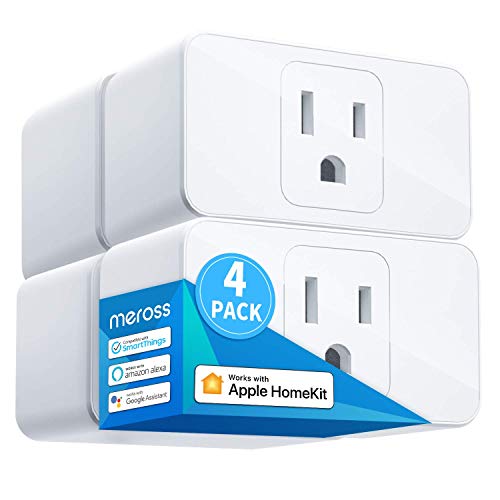
Remote Control: To enable HomeKit remote control, you need a HomePod, an Apple TV 4K, Apple TV HD, or an iPad. Set any of these Apple devices in your house as a HomeKit bridge and connect it to your home 2.4GHz Wi-Fi network. Keep in mind that once your HomeKit bridge is set up, it has to be kept online. If it is powered off or disconnected from the Wi-Fi, it will fail to respond when you intend to control the device remotely.

Stability Upgrade Quick Connection:Supports Bluetooth or WiFi connection.The improved WiFi technology let you quick connection and stay stable,no disconnection worries. Please keep the smart plug connected to your stable 2.4GHz network.(Note: Only 2.4Ghz WiFi)
1. Unbox Your Meross Smart Plug:
When you first get your Meross smart plug, unbox it carefully. Ensure all components are present, including the smart plug itself and any accompanying instructions or guides.
2. Choose a Suitable Location:
Select a location for your smart plug near a power outlet within the range of your Wi-Fi network. This will help ensure a strong and stable connection.
3. Download the Meross App:
Head to the App Store or Google Play Store on your smartphone. Search for the “Meross” app and download it onto your device—it’s essential for managing your smart plug.
4. Create a Meross Account:
Open the Meross app once installed. Follow the on-screen instructions to create a new account. Make sure to use a secure password to protect your account.
5. Power Up Your Meross Smart Plug:
Plug your Meross smart plug into a power outlet. Wait for the LED indicator to start blinking, indicating that it’s ready for setup.
6. Add Device in the Meross App:
In the Meross app, tap on “Add Device” and select “Smart Plug.” Follow the prompts to connect your smart plug to the app and your Wi-Fi network.
7. Connect to Wi-Fi:
Ensure your smartphone is connected to the 2.4GHz Wi-Fi network you want to pair your smart plug with. Input your Wi-Fi credentials into the app when prompted.
8. Name Your Devices:
After successful pairing, you can name your smart plug based on the device it will control. This will make it easier to identify and manage multiple smart plugs.
9. Test the Connection:
Once your Meross smart plug is successfully set up, test its functionality by remotely switching it on and off using the app. Ensure it responds as expected.
Connecting Meross Smart Plug
When it comes to connecting your Meross smart plug, the process is straightforward and can significantly enhance your smart home experience. Follow these steps to seamlessly connect your Meross smart plug and start controlling your devices efficiently:
Recommended Products

Ideal for Outdoor Use: IP44 weatherproof housing and sockets cover which help prevent rain from getting in. Outdoor smart plug is made for Garden, Backyard, Christmas tree, Kitchen, Landscape lighting, Bathroom, Porch, Balcony, Garage, Basement, Patio or Electric grill, Sprinkler, Washing machine, Lamps and other outdoor or indoor-use electric appliances, etc. Do not use it for pump

PD 20W Fast Charging Port: Equipped with 4 individually controlled Outlets and 4 group controlled USB ports. Up to 4.0A for four USB ports. You can charge your cellphone, tablets, and other USB gadgets with smart power strip.

【Long Wi-Fi Range and IP64】Long Wi-Fi range up to 300 feet with IP64 weather resistance. Waterproof cover is attached to protect it from dirt when not in use. Supports up to 15A/1875W.
Power Up the Smart Plug
- Plug in your Meross smart plug into a power outlet. Ensure the LED indicator on the plug starts blinking rapidly.
Open the Meross App
- Launch the Meross app on your smartphone. If you haven’t installed the app yet, you can download it from the App Store or Google Play Store.
Add Device
- In the Meross app, tap on the “Add Device” option. Select “Socket” as the device type and confirm that the LED indicator on the smart plug is blinking rapidly.
Connect to Wi-Fi
- Follow the on-screen instructions in the app to connect your smart plug to your Wi-Fi network. Make sure to enter the correct Wi-Fi password to complete the connection process.
Name Your Devices
- After the smart plug is successfully connected to your Wi-Fi network, you can assign names to the devices connected to the plug for easy identification.
- Once you have named your devices, test the connection by remotely turning them on and off using the Meross app. This step ensures that the smart plug is working correctly and allows you to control your devices from anywhere.
By following these simple steps, you can effectively connect your Meross smart plug and enjoy the convenience of managing your home devices with ease. Make sure to pay attention to each step to ensure a smooth setup process and maximize the functionality of your smart plug.
Troubleshooting Connection Issues
If you’re facing connectivity problems with your Meross smart plug, don’t worry; resolving these issues is usually straightforward. Here are some steps to troubleshoot common connection problems:
Recommended Products

Remote Control: To enable HomeKit remote control, you need a HomePod, an Apple TV 4K, Apple TV HD, or an iPad. Set any of these Apple devices in your house as a HomeKit bridge and connect it to your home 2.4GHz Wi-Fi network. Keep in mind that once your HomeKit bridge is set up, it has to be kept online. If it is powered off or disconnected from the Wi-Fi, it will fail to respond when you intend to control the device remotely.

✅【Matter Multi-platform Compatibility】Discover the power of Matter! Never limited to any platform anymore. Matter plug works seamlessly across all certified smart home platforms such as Apple Home, Alexa, Google Home, and SmartThings, enabling interoperability of all platforms and all Matter products, to easily build your Matter smart home.

Voice Control: You can control your devices hands free, just give simple voice commands to turn on/off the connected devices. Compatible with Apple HomeKit, Apple Watch, Siri, Carplay, Amazon Alexa, and SmartThings.
Check Power Supply
Ensure the smart plug is receiving power. Verify that it’s securely connected to a power source and that the LED indicator on the plug is lit up. If not, try plugging it into a different outlet to rule out any power supply issues.
Signal Interference
Wireless signal interference can hinder the connectivity of your smart plug. Keep it away from other electronic devices that might disrupt the Wi-Fi signal. Microwaves, baby monitors, or cordless phones are common culprits. Reposition your router or the smart plug to reduce interference.
Wi-Fi Network Issues
Double-check that your Wi-Fi network is functioning correctly. Restart your router and ensure it’s not experiencing any connectivity problems. Verify that the network name (SSID) and password entered in the Meross app match your Wi-Fi credentials accurately.
Firmware Updates
Outdated firmware can cause connectivity issues. Check for any available firmware updates for your smart plug within the Meross app. Updating to the latest firmware version can often resolve bugs and improve device performance.
App Settings
Review the settings in the Meross app to confirm they are configured correctly. Check if the smart plug is correctly added to the app and that it’s assigned to the right room or group. Sometimes, a simple reconfiguration can address connectivity issues.
Restart Devices
A simple restart can work wonders. Turn off your smart plug, router, and smartphone. Wait for a few minutes, then restart them in the following order: router, smart plug, smartphone. This can help reset connections and resolve any temporary glitches.
Contact Support
If you’ve tried the above steps and are still experiencing problems, reach out to Meross customer support for further assistance. They can provide specific guidance based on your issue and help you troubleshoot any persistent connectivity issues effectively.
By following these troubleshooting steps, you can quickly diagnose and resolve common connectivity issues with your Meross smart plug, ensuring smooth operation and reliable control of your home devices.
Conclusion
You’ve now learned the essential steps for connecting your Meross smart plug seamlessly. By following the setup process diligently, you can enjoy the convenience of controlling your home devices with ease. Remember to troubleshoot any connectivity issues promptly by checking power supply, addressing signal interference, and ensuring your Wi-Fi network is functioning correctly. With the Meross smart plug, you have the power to manage your devices efficiently and make your home smarter. Happy connecting!
Frequently Asked Questions
How do I prepare to connect my Meross smart plug?
To prepare for connecting your Meross smart plug, unbox the device, choose a suitable location, download the Meross app, create an account, power up the smart plug, add the device in the app, connect to Wi-Fi, name your devices, and test the connection.
What are common troubleshooting steps for connection issues with the Meross smart plug?
Common troubleshooting steps for connection issues with the Meross smart plug include checking the power supply, addressing signal interference, verifying Wi-Fi network functionality, updating firmware, reviewing app settings, restarting devices, and contacting customer support if problems persist.
