
Ever wished you could make hands-free phone calls with just a voice command? Imagine effortlessly dialing up your friends or family while multitasking around the house. With Amazon Echo, this convenience is at your fingertips.
Picture this: You’re in the midst of cooking dinner, and your phone starts ringing in the living room. Instead of rushing to grab it, what if you could simply ask your Amazon Echo to answer the call for you?
In this article, you’ll discover the simple steps to make phone calls on your Amazon Echo, transforming the way you stay connected. Say goodbye to fumbling for your phone – it’s time to embrace the ease of making calls with just your voice.
Key Takeaways
- Enabling calling features on Amazon Echo requires setting up contacts in the Alexa app to make hands-free calls effortlessly.
- Initiating phone calls on Amazon Echo is as simple as using voice commands like “Alexa, call Mom,” freeing you from manual dialing.
- Alexa on Amazon Echo can announce incoming calls, allowing you to manage them by instructing Alexa to answer or ignore the call.
- The Drop-In feature on Amazon Echo serves as an intercom system for instant communication with family members in different rooms.
- Amazon Echo prioritizes privacy and security by allowing users to manage voice recordings and encrypt calls for confidentiality.
- Troubleshooting common issues with Amazon Echo calls involves addressing connectivity problems, call quality concerns, and difficulties in making calls or using the Drop-In feature effectively.
Overview of Making Phone Calls on Amazon Echo
When making phone calls on your Amazon Echo, the process is quite straightforward, allowing you to enjoy hands-free communication effortlessly. Here’s how you can efficiently utilize this feature to stay connected seamlessly.
Recommended Products
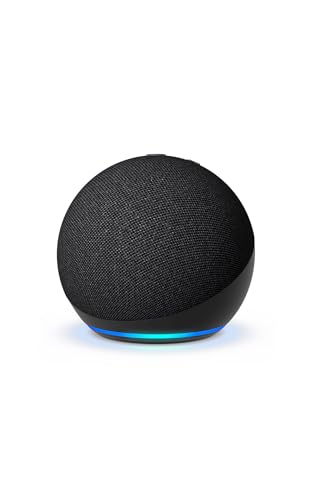
Your favorite music and content – Play music, audiobooks, and podcasts from Amazon Music, Apple Music, Spotify and others or via Bluetooth throughout your home.

Alexa can show you more - Echo Show 5 includes a 5.5” display so you can see news and weather at a glance, make video calls, view compatible cameras, stream music and shows, and more.
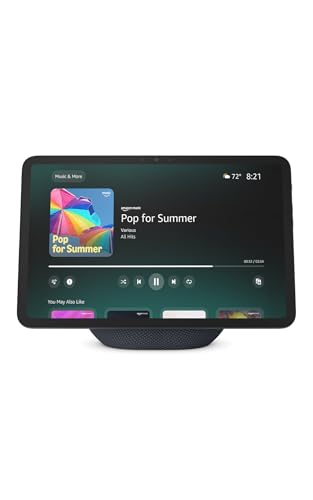
New size, more viewing area: The 11“ smart display features a vibrant Full-HD touchscreen with 60% more viewing area versus Echo Show 8 (2025 release), built-in smart home hub, AZ3 Pro chip for powerful performance, and Omnisense technology for highly personalized experiences.
Enabling Calling Features
To enable phone calls on your Amazon Echo device, you need to ensure that your contact information is properly set up in the Alexa app. By granting permission for Alexa to access your contacts, you can effortlessly call anyone in your contact list using voice commands. This feature simplifies the process of reaching out to your friends and family without the need to touch your phone.
Making Calls
Once you’ve enabled the calling feature, initiating a phone call is as simple as asking Alexa to call a specific contact. For instance, you can say, “Alexa, call Mom,” and your Amazon Echo will dial the respective contact. This hands-free calling functionality is especially useful when you’re busy with tasks around the house or when your hands are occupied.
Receiving Calls
In addition to making outgoing calls, your Amazon Echo also allows you to receive incoming calls effortlessly. When a call comes in, Alexa will notify you by announcing the caller’s name. You can then instruct Alexa to either answer or ignore the call, providing you with a convenient way to manage your calls without having to physically interact with your phone.
Drop-In Feature
For closer contacts, such as family members or trusted friends, you can use the Drop-In feature on your Amazon Echo. This feature functions as an intercom system, letting you instantly connect with other Echo devices in your household. By saying, “Alexa, drop in on the kitchen,” you can have a spontaneous conversation with someone in another room, enhancing communication within your home.
Privacy and Security
Amazon Echo prioritizes privacy and security in its calling features. You have the option to review and delete voice recordings of your calls, providing you with control over your privacy settings. Additionally, Amazon ensures the encryption of your calls to maintain the security of your conversations.
By following these steps and utilizing the various calling features of your Amazon Echo, you can streamline your communication process and enjoy the convenience of hands-free phone calls. Stay connected effortlessly with the help of your Echo device.
How to Make Phone Calls on Amazon Echo
To make phone calls on your Amazon Echo device, you can easily connect with your friends and family without lifting a finger. Here’s how you can set up and use this convenient feature:
Recommended Products
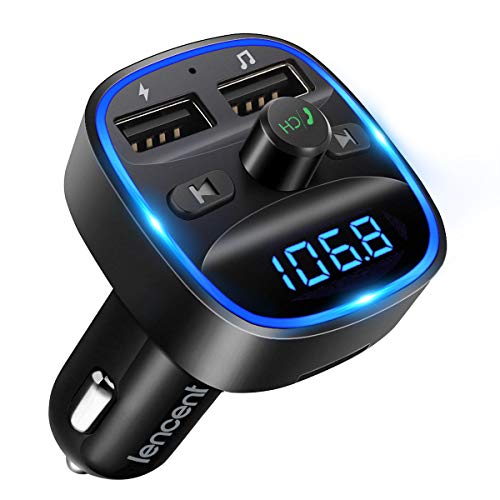
Crystal Clear Music Streaming: LENCENT T25 is anti- statics designed, and equipped with noise and wind suppressed by CVC technology that can achieve full duplex sound quality. You can stream music on your car stereo via Bluetooth/ USB Flash Drive (≤32GB) / microSD Card (≤32GB). WMA MP3 WAV APE FLAC music formats are all supported

Enjoy High Quality Music: This FM Transmitter is designed to reduce static and is equipped with noise and wind suppression through CVC technology, achieving full duplex sound quality. Stream music on your car stereo via Bluetooth or USB Flash Drive (≤32GB). Supports WMA, MP3, WAV, APE, and FLAC music formats.
![Syncwire Bluetooth 5.4 FM Transmitter Car Adapter 48W (PD 36W & 12W) [Light Switch] [Hi-Fi Deep Bass] [Fast Charge] Wireless Radio Music Adapter LED Display Hands-Free Calling Support USB Drive](https://m.media-amazon.com/images/I/419S3PI+VgL._SL500_.jpg)
[𝙃𝙪𝙢𝙖𝙣𝙞𝙯𝙚𝙙 𝘼𝙢𝙗𝙞𝙚𝙣𝙩 𝙇𝙞𝙜𝙝𝙩 𝙎𝙬𝙞𝙩𝙘𝙝 𝘿𝙚𝙨𝙞𝙜𝙣] Indulge in a delightful driving experience with our trendy rainbow light design. Immerse yourself in fun while having the convenience of easily turning off the light by double pressing the red "B" button when not needed. Enjoy the captivating ambiance of the rainbow lights and have full control over your driving atmosphere.
Enabling Calling Features
To start making phone calls, ensure your Amazon Echo is properly set up and connected to the internet. Follow these simple steps:
- Check Internet Connection: Make sure your Echo device is connected to a stable Wi-Fi network.
- Update Alexa App: Ensure your Alexa app is up to date on your smartphone.
- Verify Contacts: Check if your contacts are synced with the Alexa app for proper calling functionality.
Making a Phone Call
Once you’ve enabled the calling feature, making a phone call is a breeze. Just follow these steps:
- Wake Word: Begin by saying the wake word, followed by the contact name you want to call.
- Initiate Call: For example, say, “Alexa, call Mom” to start a call.
- Answering Calls: When you receive a call, say, “Alexa, answer” to pick up.
Using Drop-In Feature
The Drop-In feature on Amazon Echo allows instant intercom-style communication within your household. Here’s how to use it:
- Enable Drop-In: Set up Drop-In in the Alexa app for the devices you want to communicate with.
- Drop-In Command: Say, “Alexa, drop in on [device name]” to start a conversation instantly.
Privacy and Security
Amazon Echo values your privacy and offers features for secure communication:
- Manage Voice Recordings: Control which voice recordings are stored and delete them if needed.
- Encrypt Calls: Enjoy encrypted calls for added security during phone conversations.
By following these steps and utilizing the calling features of your Amazon Echo smart device, you can effortlessly stay connected and enjoy the convenience of hands-free phone calls. Now you’re all set to make and receive calls seamlessly.
Troubleshooting Common Issues with Amazon Echo Calls
Recommended Products

Number one in hunting sports

The Echo Poly Timber Call is great when hunting areas such as the green timber

Connectivity Problems
If you are experiencing connectivity issues when making phone calls on your Amazon Echo, follow these simple steps to troubleshoot:
- Check Your Wi-Fi Connection: Ensure that your Echo device is connected to a stable Wi-Fi network. Poor Wi-Fi connectivity can disrupt call quality.
- Move Closer to the Router: If the Wi-Fi signal is weak, try moving your Echo closer to the router to improve signal strength.
- Restart Your Router and Echo: Sometimes, a simple restart can fix connectivity issues. Turn off your router and Echo device, then turn them back on after a few minutes.
Call Quality Concerns
If you encounter issues with call quality, consider the following:
- Position the Echo Correctly: Place your Echo device in a central location away from obstructions for better sound quality during calls.
- Check Microphone and Speaker: Ensure that the microphone and speaker on your Echo are not blocked or damaged, as this can affect call clarity.
- Update Echo Software: Keep your Echo device software up to date to benefit from the latest improvements that may enhance call quality.
Unable to Make Calls
If you are unable to make calls using your Amazon Echo, try these troubleshooting tips:
- Check Permissions: Ensure that you have enabled calling permissions on your Echo device. You can do this in the Alexa app under the Communications settings.
- Verify Contact List: Make sure that the contacts you are trying to call are saved correctly in your Alexa app or device.
- Voice Training: Re-train your Echo device for voice recognition if it has trouble understanding your commands when making calls.
Resolving Echo Drop-In Issues
If you are having problems with the Drop-In feature on your Amazon Echo, follow these steps to troubleshoot:
- Check Drop-In Settings: Confirm that Drop-In is enabled for the specific Echo devices you want to communicate with in the Alexa app settings.
- Privacy Settings: Adjust privacy settings to control who can Drop-In on your Echo device to enhance security and avoid unexpected interruptions.
- Test Drop-In Functionality: Test the Drop-In feature with a trusted contact to ensure it is working correctly on your Echo device.
By addressing these common issues, you can optimize your experience when making phone calls on your Amazon Echo. If problems persist, refer to Amazon’s official support resources for further assistance.
Conclusion
That’s it! You’ve now learned how to effortlessly make phone calls on your Amazon Echo. By following the simple steps outlined in this guide, you can stay connected hands-free and enjoy the convenience of voice-activated calling. Remember to utilize the Drop-In feature for quick intercom communication within your household. Amazon Echo prioritizes your privacy and security, offering you control over voice recordings and encrypted calls. If you encounter any issues, refer back to the troubleshooting tips provided to ensure smooth connectivity and call quality. With these insights, you’re all set to make the most of your Amazon Echo’s calling capabilities. Happy calling!
Frequently Asked Questions
Can I make hands-free phone calls using Amazon Echo?
Yes, you can make hands-free phone calls using Amazon Echo by enabling calling features and using voice commands.
How do I enable calling features on Amazon Echo?
You can enable calling features on Amazon Echo by setting up the device in the Alexa app and syncing your contacts. Voice commands can be used to make and receive calls.
What is the Drop-In feature on Amazon Echo?
The Drop-In feature on Amazon Echo allows for instant intercom communication within the household, connecting with other Echo devices quickly.
How does Amazon Echo prioritize privacy and security during calls?
Amazon Echo prioritizes privacy and security during calls by allowing users to manage voice recordings and encrypt calls for secure communication.
What are some common troubleshooting tips for Amazon Echo calls?
Common troubleshooting tips for Amazon Echo calls include solving connectivity problems, addressing call quality concerns, resolving issues with making calls, and troubleshooting Echo Drop-In problems.
