
Do you ever find yourself wishing your home could be a bit smarter? Picture this: you walk in after a long day, and your lights turn on, your favorite playlist starts playing, and your thermostat adjusts to the perfect temperature—all with a simple voice command. Sounds like a dream, right? Well, with Google Home Nest, it’s not just a dream; it’s a reality waiting to be set up in your home.
In this article, I’ll guide you through the straightforward process of setting up your Google Home Nest, empowering you to transform your living space into a hub of convenience and connectivity. Say goodbye to fumbling with multiple remotes or toggling between apps; with Google Home Nest, you can streamline your daily routines and enjoy a more seamless smart home experience. Get ready to unlock the full potential of your living space with just a few simple steps.
Key Takeaways
- Google Home Nest offers voice-controlled smart devices for seamless control of various home functions.
- The device integrates with apps and services to help you manage daily activities efficiently.
- Customizable settings allow you to personalize your Google Home Nest experience according to your preferences.
- Multi-room functionality lets you extend control across different areas of your home.
- Wi-Fi connectivity ensures reliable internet access for accessing online services and controlling smart devices.
- Priority on data privacy and security ensures that your personal information remains protected while using Google Home Nest.
Understanding Google Home Nest
To fully grasp how Google Home Nest operates in your smart home setup, it’s essential to understand its core functionalities and connectivity features. Here’s a breakdown to help you get a clear picture:
Recommended Products

Stability Upgrade: Supports Bluetooth or WiFi connection, which is more stable and faster than plugs that can only be connected through WiFi. No disconnection worries, control all your home appliances and devices anytime & anywhere.


App-Guided Install: The Kasa or Tapo app guides you through step-by-step setup. Requires neutral wiring and 2.4 GHz Wi-Fi. Consulting an electrician is recommended if you’re unfamiliar with electrical wiring
Voice-Controlled Smart Devices
With Google Home Nest, you can control a myriad of smart devices in your home using just your voice. Whether it’s adjusting the thermostat, turning off the lights, or playing your favorite music playlist, Google Home Nest streamlines these tasks effortlessly.
Seamless Integration with Apps
Google Home Nest seamlessly integrates with various apps and services, allowing you to manage your day-to-day activities more efficiently. From setting reminders to checking the weather forecast, Google Home Nest acts as your personal assistant, helping you stay organized.
Customizable Settings
One of the key benefits of Google Home Nest is its customizable settings. You can tailor the device to suit your preferences, such as adjusting sound levels, setting up routines for different times of the day, or even personalizing your news briefings.
Multi-Room Functionality
Google Home Nest offers multi-room functionality, enabling you to extend its reach across different areas of your home. You can create a connected network of devices to enjoy seamless interaction and control from anywhere in your living space.
Enhanced Connectivity
Through its Wi-Fi connectivity, Google Home Nest ensures a reliable and stable connection to the internet. This feature is crucial for accessing various online services, streaming music, or controlling smart devices remotely.
Data Privacy and Security
Google Home Nest prioritizes data privacy and security, ensuring that your personal information remains protected. With built-in privacy features and stringent security protocols, you can use Google Home Nest with confidence.
By understanding these core aspects of Google Home Nest, you can make the most of its capabilities and seamlessly integrate it into your smart home environment. Explore the possibilities and enjoy the convenience of a connected living space tailored to your needs.
Setting up Google Home Nest
To set up your Google Home Nest, follow these straightforward steps:
Recommended Products

Google Nest Hub 1st Gen H1A – 7-inch smart display with Google Assistant built in for hands-free help, smart home control, entertainment, and daily organization.

Google Audio Bluetooth Speaker Wireless Music Streaming - Chalk
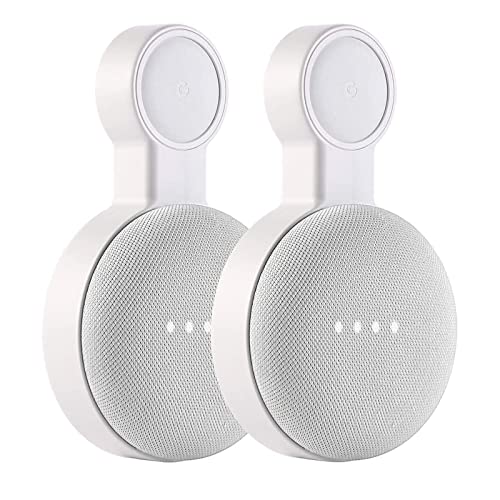
Universal Mount for Google Mini: This outlet wall mount is upgraded and tailored for both Google Nest Mini and Google Home Mini. It contains a small adaptor ring to fit for the plug of google home mini. You can replace it flexibility as needed, easy to install and remove
1. Unboxing Your Google Home Nest:
When you unbox your Google Home Nest, you’ll find the device itself, a power adapter, and a quick start guide inside. Ensure all the components are in the box before proceeding.
2. Powering Up Your Device:
Connect your Google Home Nest to a power source using the provided adapter. Once plugged in, your device should power on automatically.
3. Downloading the Google Home App:
On your smartphone or tablet, download and install the Google Home app from the App Store (iOS) or Google Play Store (Android). This app will be your main interface for setting up and controlling the Google Home Nest.
4. Adding Your Device to the App:
Open the Google Home app and follow the on-screen instructions to add a new device. Make sure your smartphone or tablet is connected to the same Wi-Fi network you wish to use with your Google Home Nest.
5. Setting Up Your Google Home Nest:
The app will guide you through the setup process, including connecting your device to your Wi-Fi network, choosing your preferred language, and linking your Google account to access personalized features.
6. Personalizing Your Settings:
Once your Google Home Nest is connected, customize your settings based on your preferences. You can set up voice match, adjust privacy settings, and tailor the device to suit your needs.
7. Exploring Features:
After setup, explore the various features of your Google Home Nest. Try using voice commands to control smart devices, play music, set reminders, or ask questions using the Google Assistant.
By following these steps, you can easily set up your Google Home Nest and start enjoying the convenience of a smart home experience tailored to your preferences.
Configuring Google Home Nest Settings
After setting up your Google Home Nest device, it’s essential to configure the settings to personalize your experience and make the most out of its features. Here’s how you can adjust the settings to suit your preferences:
Recommended Products

Nest thermostats are designed to work without a C wire in most homes but for some systems, including heating-only, cooling-only, zone-controlled, and heat pump systems, you'll need a Nest Power Connector or C wire.

The Nest Thermostat Trim Kit is designed to cover imperfections on your wall from removing your old thermostat.What's in the box : Trim plate Steel plate Mounting screws Installation card.Product note: You can also check your system’s compatibility before purchasing a Nest thermostat with our online Nest Compatibility Checker on the Google Nest support page

Universal Mount for Google Mini: This outlet wall mount is upgraded and tailored for both Google Nest Mini and Google Home Mini. It contains a small adaptor ring to fit for the plug of google home mini. You can replace it flexibility as needed, easy to install and remove
Connecting to Wi-Fi
When configuring your Google Home Nest, ensure it’s connected to your home Wi-Fi network. Open the Google Home app on your mobile device, select your device, and follow the prompts to connect it to Wi-Fi. This step is crucial for your device to access the internet and function properly.
Personalizing Assistant Settings
Customize your Google Assistant settings based on your preferences. You can adjust the voice of the Assistant, language settings, and even enable or disable specific features. Navigate to the Google Home app, select your device, and explore the Assistant settings to tailor them to your liking.
Setting up Voice Match
Voice Match allows Google Home Nest to recognize your voice and provide personalized responses. Set up Voice Match by following the prompts in the Google Home app. This feature enables you to access your calendar, reminders, and personalized recommendations by simply using your voice.
Managing Room Assignments
Assign rooms to your Google Home Nest devices for better organization. In the app, you can create different rooms like “Living Room” or “Bedroom” and assign specific devices to each room. This helps you control devices more efficiently and customize your smart home experience.
Adjusting Privacy Settings
Maintain control over your privacy by managing the settings related to data collection and usage. Review the privacy settings in the Google Home app to understand what information is being collected and how it’s utilized. You can adjust these settings based on your comfort level.
Exploring Additional Features
Take advantage of other features offered by Google Home Nest, such as setting up routines, connecting additional smart devices, or exploring compatible services. Dive into the app to discover new functionalities and integrations that can enhance your smart home experience.
By configuring these settings on your Google Home Nest device, you can tailor your smart home experience to meet your specific needs and preferences. Personalizing the settings allows you to interact with your devices more intuitively and enjoy a seamless and customized smart home ecosystem.
Troubleshooting Common Setup Issues
Facing setup challenges with your Google Home Nest can be frustrating, but don’t worry – here are some common issues you might encounter and how to resolve them:
Issues Connecting to Wi-Fi
If your Google Home Nest is having trouble connecting to Wi-Fi, here’s what you can do:
- Check Wi-Fi Network: Ensure your Wi-Fi network is working correctly.
- Move Closer: Place your device closer to the Wi-Fi router for a stronger signal.
- Restart Router: Try restarting your router to troubleshoot any connectivity issues.
- Reset Google Home Nest: If the problem persists, consider resetting your Google Home Nest and setting it up again.
Google Home Nest Not Responding to Voice Commands
If your Google Assistant isn’t responding to your voice commands, follow these steps:
- Check Microphone: Ensure the microphone on your Google Home Nest is not muted or blocked.
- Reconnect to Google Account: Make sure your device is synced with the correct Google account.
- Voice Match Setup: Set up Voice Match again to improve the Assistant’s recognition of your voice.
Trouble Adding or Pairing Devices
Having difficulties adding or pairing smart devices to your Google Home Nest? Here’s what you can try:
- Check Compatibility: Ensure the device you’re trying to pair is compatible with Google Home Nest.
- Update Firmware: Check if the device’s firmware is up to date.
- Reset Device: Try resetting the device you want to pair before attempting the connection again.
Unresponsive Google Home App
If the Google Home app is unresponsive or crashing, here’s how you can troubleshoot:
- Update the App: Make sure you have the latest version of the Google Home app installed on your smartphone.
- Clear Cache: Clear the cache and data of the app to resolve any performance issues.
- Restart Device: Try restarting your smartphone to see if that restores functionality to the app.
By following these troubleshooting tips, you can quickly address common setup issues with your Google Home Nest and ensure a seamless smart home experience.
Conclusion
Setting up your Google Home Nest is a breeze with its user-friendly features and seamless integration into your smart home ecosystem. From controlling lights to adjusting the thermostat with just your voice, the convenience it offers is unmatched. Troubleshooting common setup issues, such as Wi-Fi connectivity problems or unresponsive voice commands, is made simple by following a few easy steps. By customizing settings, updating firmware, and ensuring app performance, you can create a personalized smart home tailored to your preferences. With a focus on data privacy and security, Google Home Nest provides not only connectivity but also peace of mind. Embrace the future of smart living with Google Home Nest and enjoy the endless possibilities it brings to your daily life.
Frequently Asked Questions
What are the key features of Google Home Nest?
Google Home Nest offers voice-controlled smart devices, seamless app integration, customizable settings, multi-room functionality, enhanced Wi-Fi connectivity, and a focus on data privacy and security.
How can I troubleshoot setup issues with Google Home Nest?
Common setup issues like Wi-Fi connectivity problems, unresponsive voice commands, device pairing difficulties, and app issues can be resolved by checking Wi-Fi networks, resetting devices, updating firmware, and troubleshooting app performance.
